$cat quick-response.mdMiscHacknite 2.0
Quick Response
A lock icon covers one of the three big squares a QR scanner needs to find the code. Put the square back, scan it, and read the result backwards.
$man quick-response
What this one teaches:
- How a phone finds a QR code in an image, using the three large squares in its corners.
- Why a QR code's built-in error correction can't make up for a missing corner square.
- Repairing an image with copy and paste, and reversing a piece of text.
Task description
Ivica decided to modernise his business and added a QR code that takes customers to his website. For some reason, though, the code doesn’t seem to work. Try to work out what’s wrong; you might be rewarded.
The original was in Croatian; this is my translation.
The broken code
The task comes with one image:

Point a phone camera at it and nothing happens. The padlock in the top-right corner looks like decoration, but it is the reason the code won’t scan.
How a scanner finds a QR code
Look at the top-left and bottom-left corners. Each has a large square: a black ring, a white ring, and a solid black centre. These are called finder patterns, and every standard QR code has three of them, in the top-left, top-right and bottom-left corners.
A scanner looks for those three squares first. From where they sit, it works out where the code is in the picture, how big it is and which way up it is. The fourth corner is left without one on purpose, so the scanner can tell the orientation. Only once it has found all three does it start reading the small dots in between, which hold the actual content.
QR codes also have error correction: extra data that lets a scanner rebuild the content when part of the code is dirty or covered. That’s why you often see a logo printed in the middle of a QR code and it still works. Error correction only covers the dots that hold content, though. The finder patterns aren’t content, so when one of them is missing, the scanner can’t locate the code at all.
Putting the square back
Since all three finder patterns are identical, the fix is to copy one of the two good ones and paste it over the padlock. Any image editor can do this, even Paint: select the top-left square, copy it, paste it, and drag it into the top-right corner so it lines up with the edges of the code.
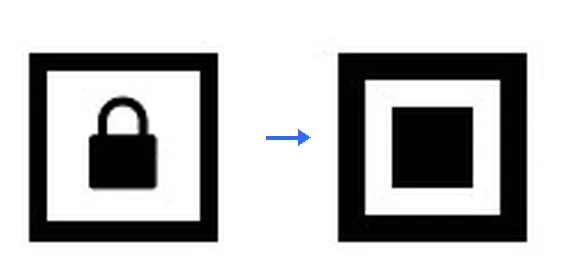
After that, the phone scanned it straight away. The result didn’t look like a link. It looked like a flag written backwards: it opened with the closing bracket and ended in 1202FTC, which is CTF2021 reversed.
Reading it the right way round
To turn the text around, paste it into any “reverse text” tool online, or use one line of Python:
print(input()[::-1])Run it, paste the scanned text and press Enter. Python prints the text backwards, which here is the flag the right way round, ready to submit.
$cat flag.txt reveal
CTF2021[725971863915]